
On OVHcloud shared hosting, a database backup is retrieved from the customer area, under the Databases tab, via the “Restore a backup” menu and then “Download the backup”. phpMyAdmin, a script or an SSH command remain possible.
The four ways to get an SQL dump out of OVHcloud
- The backup tool in the customer area, no technical skills required.
- An export from phpMyAdmin, most often in SQL format.
- A PHP script that runs the export.
- The mysqldump command over SSH, reserved for advanced users.
Being able to restore your database has become a must for anyone who owns a website.
Hacking, crashes or human error: who working on the web has never been through this kind of situation?
A backup is therefore always worth having, but you have to think of it before the problem appears.
The two things that can cause trouble are the files on the FTP server and the databases.
If you are on a dedicated server, there is a good chance you won't be able to recover anything if you didn't think of scheduling your own backups.
On the other hand, if you have shared hosting at OVH, you have fallback solutions: the host makes automatic FTP and SQL backups.
Downloading the backup from the OVHcloud customer area
An OVHcloud database backup can now be downloaded in a few clicks from the customer area. Open the Hosting plans section, choose your hosting plan, then the Databases tab. The "..." button to the right of the database opens the “Restore a backup” menu: a table lists the available backups, with their date and the date on which each will be deleted from the tool. The "..." button on a row then offers “Download the backup”.
The same menu lets you create a backup on demand by selecting the date you want. This is useful just before a CMS update or a migration, to keep a clean copy of the database at the exact moment you make your changes.
The other ways to export an SQL database
The OVHcloud documentation describes three other ways to export a database hosted on shared hosting:
- phpMyAdmin: once logged in to the interface, the Export tab produces a file, most often in SQL format;
- a PHP script placed on the hosting, which runs the export and writes the file to the storage space;
- an SSH command such as mysqldump, with the server address, username, password and database name, the file then being brought back to your machine.
OVHcloud strongly recommends setting up your own backup strategies: the host's automatic copies get you out of trouble, but they do not replace a regular export kept somewhere other than on the server.
The original procedure, as it used to work
When this article was published, the method only applied to MyISAM SQL databases (InnoDB did not work with this system), on the shared plans of the time:
- Starter
- Start 1G, 5G, 10G
- 20gp
- 60gp
- 300gp
- Perso
- 1000gp
- 90 Plan
- Pro
- 240 Plan
- Business
- 720 plan
- Media plan
- Xxl plan
- Premium
OVH made backups of them every morning at 4:00 am, and every Sunday.
You could therefore retrieve either last night's 4 am backup, or last Sunday's.
There was no more choice than that, but it was already pretty good!
Through the manager
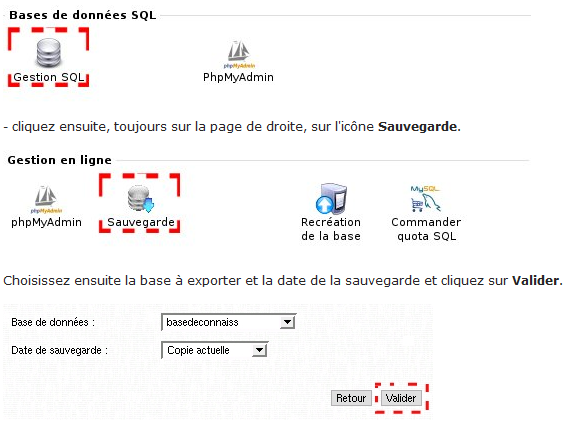
The manager of the time offered the "Hosting" tab and then "SQL management". You then received an email within 15 minutes to retrieve the dump.
Through a direct connection to the -n and -s databases
The other solution was to connect to the database with the following credentials:
- Current database: SQL database your-SQL-database-name, SQL server your-SQL-server, user your-username;
- Last night's database: SQL database your-SQL-database-name-n, same server, same user;
- Last week's database: SQL database your-SQL-database-name-s, same server, same user.
With these credentials, you could log in to phpMyAdmin at OVH, compare the databases, take this or that table or even make a full database export. The database export script remained an alternative.
OVH's guides have since moved to the OVHcloud documentation, which describes the current procedure presented above.